
Using spellcache › Collection and binders
Collection and binders
Sign in
spellcache has no passwords.
- Enter your Email address and tap Send magic link.
- The email holds a 6-digit code and a sign-in link, both valid for 10 minutes. Type the code (it signs you in on the sixth digit), or open the link on the same device.
- At your first sign-in, choose a username: 3 to 20 characters, lowercase
letters, numbers,
-or_.
In the installed app or the Android app, use the code: the link opens in the browser. An account must be invited by an administrator unless sign-ups are open on your server (see Administration).
Find your way around
On a phone, the tab bar holds Collection, Search, Decks, Tools (once a tool is on) and Settings. From 900 px wide, a sidebar replaces it, and from 1280 px a card preview pane can replace the card sheet (Settings › Appearance › Card preview pane).
The Collection tab
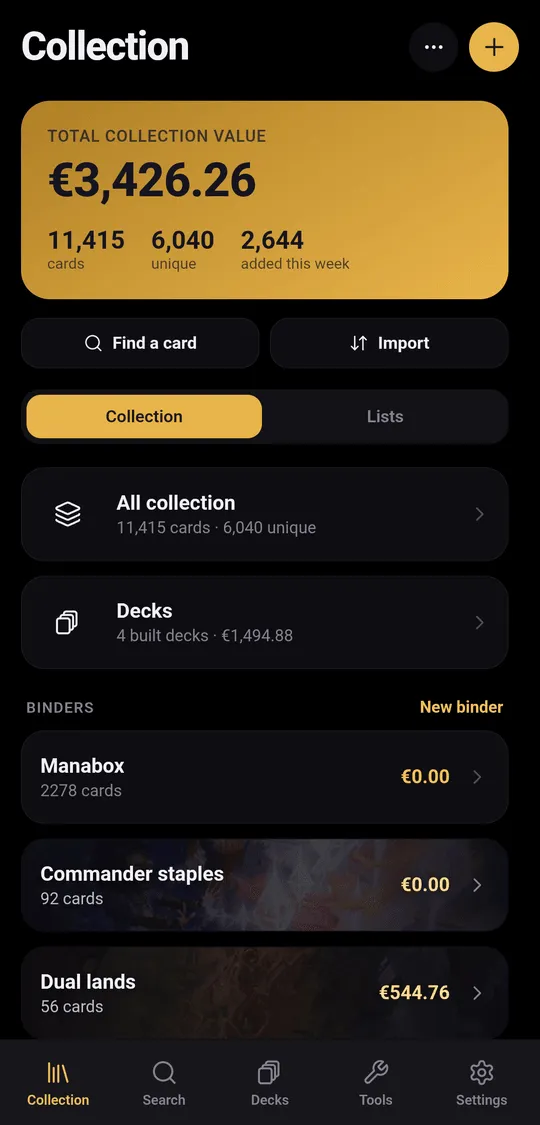
The top of the screen shows the total collection value, its change over the last 7 days when available, and three counters: cards, unique cards and cards added this week.
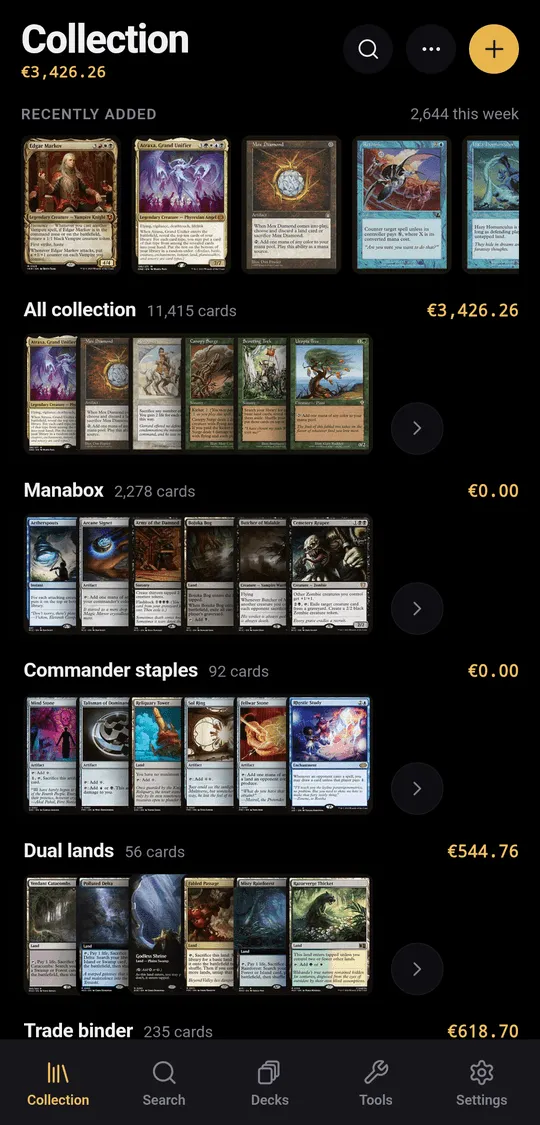
Below, Collection lists All collection, your Decks that are built, and your Binders; Lists shows your lists. Two layouts exist, chosen in Settings › Appearance › Collection home:
- Compact: one row per binder or list.
- Shelves: one horizontal shelf of cards per binder, list and built decks, with a Recently added track on top.
Binders and lists
| Binder | List | |
|---|---|---|
| Holds | Cards you own | Cards you don’t own: a wishlist, a trade target, a set to complete |
| Counts in the collection value | Yes | No, only in the list’s own total |
| Created from | ··· › New binder |
··· › New list |
A card you own is either loose in the collection or in one binder. Deleting a binder never deletes its cards: they go back loose in the collection.
A binder’s ··· menu offers Rename, Binder look, Share (see
Sharing), Export list and Delete binder.
Add a card
- Tap +, or tap a result in the Search tab.
- Type at least two letters of the name, pick the card, then the printing. Edition lets you switch printing later.
- Set the Quantity, the Finish (Non-foil or Foil), the Condition
(NM, LP, MP, HP, DMG) and the Language (
enby default). - Tap Add to collection, Add to binder or Add to list, depending on where you started.
Cards added from the Collection home or from Search go loose into the collection. To add many cards at once, import a list.
Edit, move and remove
Tap a card to open its sheet, then Edit to change quantity, condition, foil, edition, language, notes or Binder (No binder puts it back loose in the collection). Bringing the quantity down to 0 removes the card; an Undo button stays on screen for a few seconds.
To act on several cards, long-press a row (on desktop, Ctrl-click or Shift-click). The action bar offers:
- Binder: move the selection to a binder;
- To deck: move it to a deck that is still being planned;
- Edit: set condition, finish, quantity or language on every selected card;
- Delete.
Each bulk action can be undone right after.
Search, filter and sort
The search field at the top of every card list searches by name within that list. Filters narrows by colour (including, exactly, at most), type, rarity, finish, condition, set, binder and price; active filters show as chips you can remove one by one. Sort & group sorts by value, name, quantity, set and number, rarity, mana value or date added, and groups by set, colour, type or rarity.
Three densities are available: Rows, Compact and Grid. The default comes from Settings › Appearance › Card list density; changing it in a list only affects that view.
Binder look
··· › Binder look gives a binder a Colour (six tints) or Card art:
any card of the catalogue, owned or not, with the artist credited. Decks can
also use their commander’s art. Settings › Appearance › Artwork and tints
hides every look at once without deleting them.
Prices and value
Prices come from Scryfall and are refreshed every night. Each account picks one market in Settings › Preferences:
| Price source | Currency |
|---|---|
| Cardmarket trend (default) | EUR (€) |
| TCGplayer market | USD ($) |
Currency and Price source are the same setting seen from two sides: spellcache never converts between currencies. Values appear on the Collection home, on every binder, list and deck, and on public pages. Settings › Appearance › Display prices shows or hides prices on Grid tiles.