
Using spellcache › Trading
Trading
The trading wizard compares the value of both sides, then moves the cards in and out of your collection in one step.
Trading is a tool you turn on: Settings › Tools › Trading mode. Turning it on also makes your account findable as a trade partner by other users of the server; accounts without it never appear in partner search.
Open Tools › Trading. Trades are grouped into Waiting for you (marked Your turn), In progress and History. Each row shows the partner, how many cards each side gives, and the balance (Even or the difference).
Start a trade
Tap New trade and choose who you trade with:
| Mode | When | What you enter |
|---|---|---|
| In person | At the table, with someone who may not use spellcache | Both sides. Their name is optional (e.g. “Sam at the LGS”). |
| A user of spellcache | Live, with another account of your server | Only your side. The other person picks their own cards on their device. |
For a live trade, search the other person’s username (2 characters minimum). Only users who turned on Trading mode can be picked.
Pick what you give
What do you give? lists your cards grouped by container: the collection itself, each binder and each deck. Search by name, filter with All, Binders or Decks, open a group and tick cards, or use Select all to add a whole binder.
A built deck can be traded whole (Trade whole deck), or dismantled first if you only want to give some of its cards.
Add what you get (in person)
What does {partner} give? has two tabs:
- Search: any card of the catalogue. Tap a result to choose another printing; + adds it as non-foil, NM, English, quantity 1. Adjust it later in Details.
- Import a list: paste a list or a CSV, or Choose a file. Accepted formats are listed in Importing lists. Check the list shows what was recognised, lets you pick a printing for ambiguous lines and lists what was not found; Add N cards confirms.
Cash and notes
Cash & notes is optional (Skip in the header):
- Cash: in person, choose who pays whom and the amount. In a live trade, each side enters only what they pay. Cash counts at face value.
- Notes: what was discussed or promised, up to 2,000 characters.
Review and compare
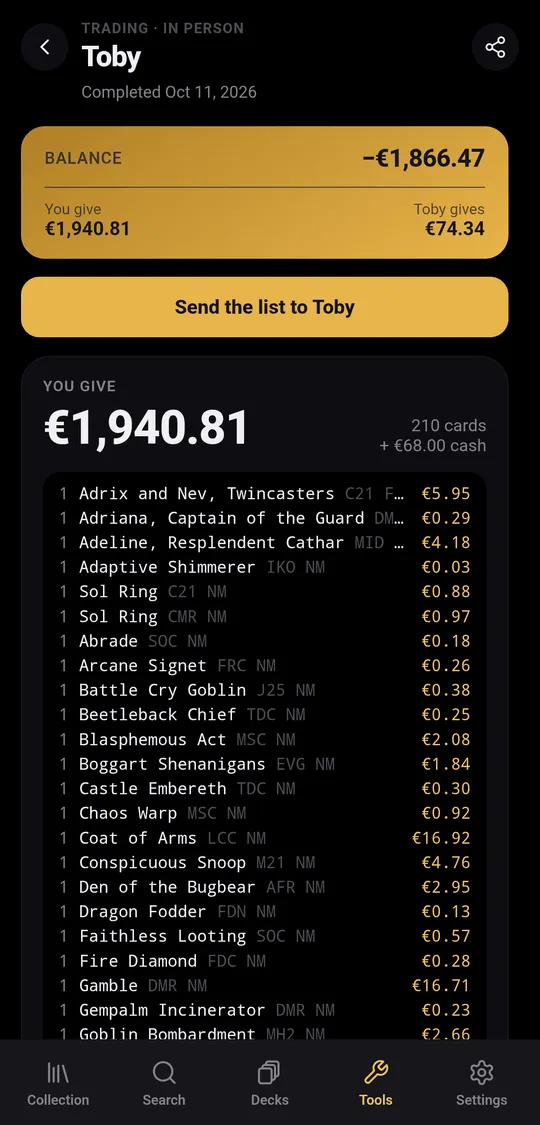
The summary shows a Balance band (Even or the difference) and one zone per side with its total, its cards, and three buttons: Add cards, Cash and Details.
- Value at applies a percentage to one side’s cards: 80 %, 90 %, 100 %, 110 %, or Custom (a percentage from 1 to 150, or a fixed amount). It never applies to cash.
- Details changes quantity, finish, condition, removes a card, or sets a Unit price instead of the market price.
- Cards without a price count as 0, and the summary says how many there are.
Prices come from your price source. The currency is fixed when the trade is created.
Complete the trade
Choose where incoming cards go with Cards you get go to: the collection or any binder.
In person: tap Complete trade. spellcache shows how many cards leave and how many arrive, then applies the trade. An Undo button stays available for a few seconds, except when a whole deck was traded, since the deck is dismantled.
Live: both people tap Accept trade. Nothing changes until both accepted the same version: if one side edits the trade after the other accepted, the other has to review it again. You can Withdraw acceptance until then. Each person only adds or removes their own cards; both can adjust prices and the value percentage. The screen refreshes on its own while the trade is open.
Cancel trade keeps the trade in your history and changes nothing in your collection.
Guests of a collection cannot trade from it (see Sharing).
Export a trade
Export the trade (share icon), or Send the list to {partner} once the trade is completed, offers three formats:
| Format | Content |
|---|---|
| Summary | Both sides, cash and notes, readable by anyone |
| Card list | qty Name (SET) number lines, imported by Moxfield, Archidekt, Arena or spellcache |
| CSV | Every card with giver, set, number, finish, condition, language and price |
Copy puts it on the clipboard; Share opens the system share sheet, or downloads a file where sharing is not available.