
Using spellcache › Android app and PWA
Android app and PWA
spellcache is built for phones first. There are two ways to have it on your home screen; both open your own server and always run its current version.
| Installed web app (PWA) | Android app (APK) | |
|---|---|---|
| Android | Yes | Yes, Android 7.0 or later |
| iPhone, iPad | Yes | No |
| Install from | Your browser | GitHub releases |
| Updates | With the server | With the server; the APK itself rarely changes |
Neither works offline: spellcache always needs a connection to your server.
Installed web app
Open your spellcache address in the browser, then use the browser’s own install entry:
- Chrome on Android: menu › Add to Home screen (or Install app).
- Safari on iPhone: share button › Add to Home Screen.
- Chrome or Edge on desktop: the install icon in the address bar.
The app opens in its own window, without the browser’s toolbar.
Android app
- Download
spellcache-<version>.apkfrom the latest release. A.sha256file next to it lets you check the download. - Open it on the phone. Android asks you to allow installs from the browser or file manager you used: allow it for this install.
- On first launch, enter Your spellcache server, the address you open
spellcache at in your browser (e.g.
https://spellcache.example.com), and tap Connect.
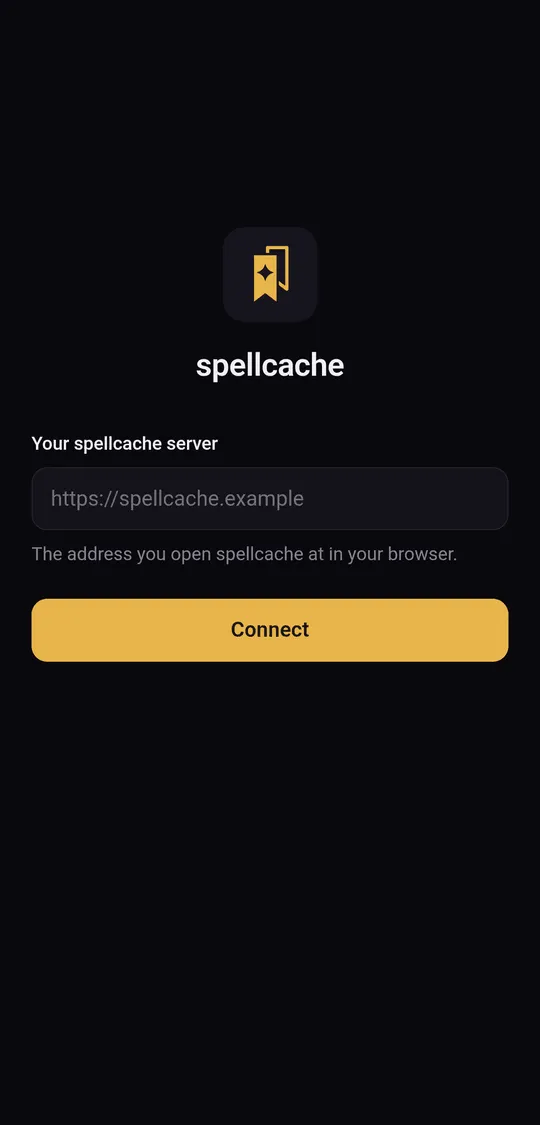
The server must be reachable over HTTPS with a certificate Android trusts. Plain HTTP and self-signed certificates are refused. If the app cannot reach the server, check the address and that the server answers in a browser.
The Android app also carries the card scanner, which reads cards with the camera.
Later launches open your server directly. To change server, press the system Back button from the first page of your server: it returns to the server screen. Links to other sites open in your browser.
Signing in on a phone
The sign-in email holds both a link and a 6-digit code. In the installed web app and in the Android app, type the code: the link opens in the browser, not in the app. See Collection for the sign-in steps.