
Using spellcache › Table tools
Table tools
Tools are off by default. Turn them on in Settings › Tools; the Tools tab appears in the tab bar as soon as one of them is on.
| Tool | What it does |
|---|---|
| Life tracker | Life totals for up to six players, with a first-player pick |
| Playtest | Draw opening hands, mulligan and play the first turns of a deck |
| Trading mode | See Trading |
| Card scanner | Add a pile of cards with the camera of the Android app, see Card scanner |
Life tracker
Tools › Life tracker opens the setup screen:
- Players: 2 to 6.
- Starting life: 20, 30, 40, or Other for any whole number.
- Roll for first player: picks a seat at random when the game starts.
- Keep the screen awake: stops the phone from going to sleep during the game.
Start game opens a full-screen, dark table. The pads of the top row are upside down so the players across the table can read them. Tap + or − on a pad, or hold it to change the total faster. A skull appears at 0 or below, and a crown marks the first player.
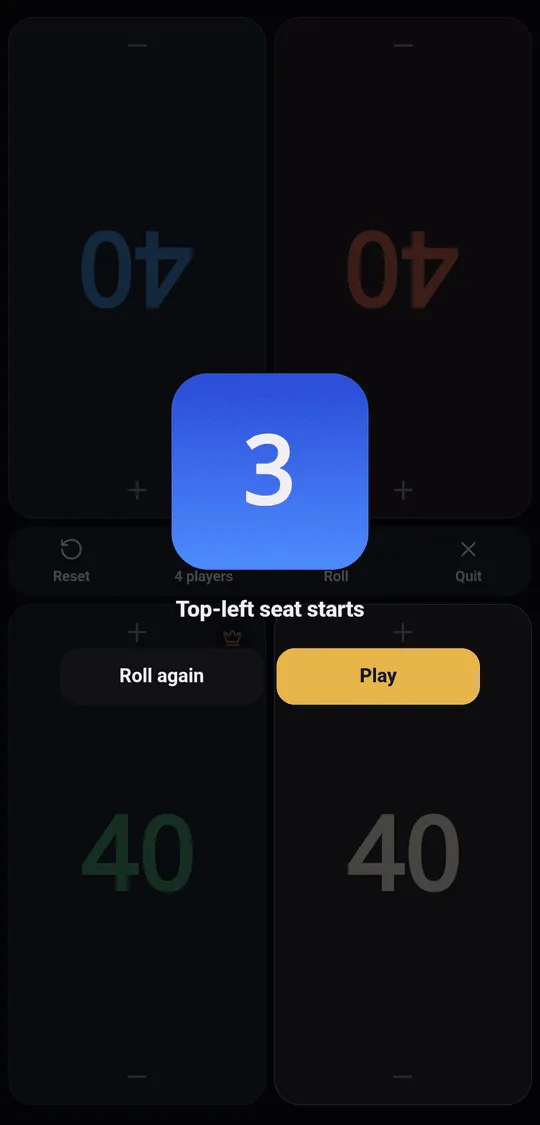
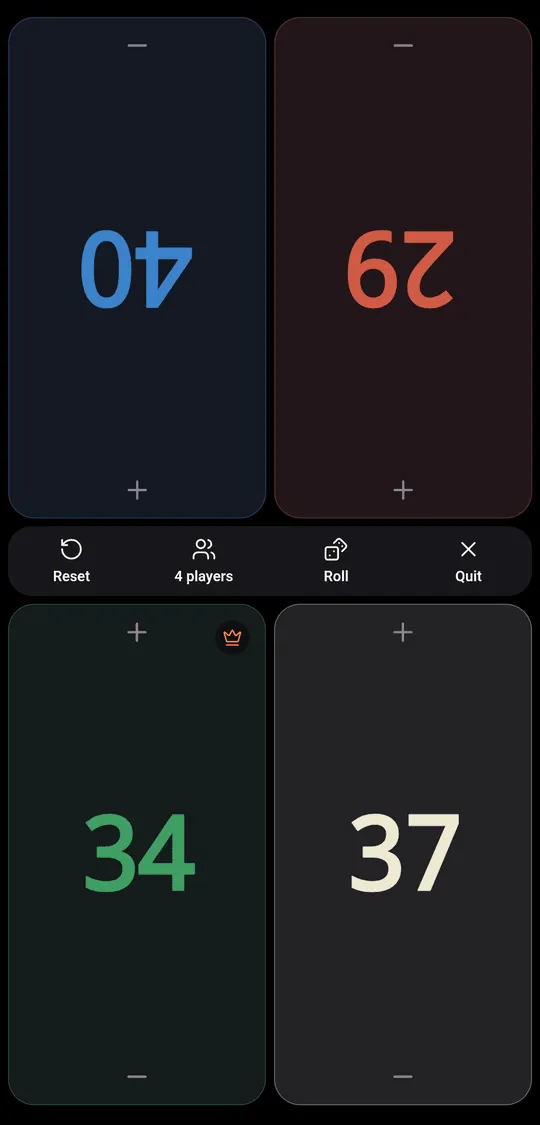
The bottom bar has Reset (back to starting life, without a new roll), the player count (back to setup), Roll (pick a first player again) and Quit.
The game in progress is kept in the browser: reloading the page brings you back to the same totals.
Playtest
Open Tools › Playtest and pick a deck, or use Playtest in a deck’s menu.
- Choose On the play or On the draw. Only the mainboard is shuffled; commanders start in the command zone and the sideboard never enters the game.
- Look at your seven cards and Keep or Mulligan. Mulligans follow the London rule: draw seven again, then tap cards in your hand to put them on the bottom of the library.
- Play: Draw, Next turn, and tap a card to play it, return it to your hand, put it in the graveyard, or on the top or bottom of the library. The command zone and Look at the top open as sheets.
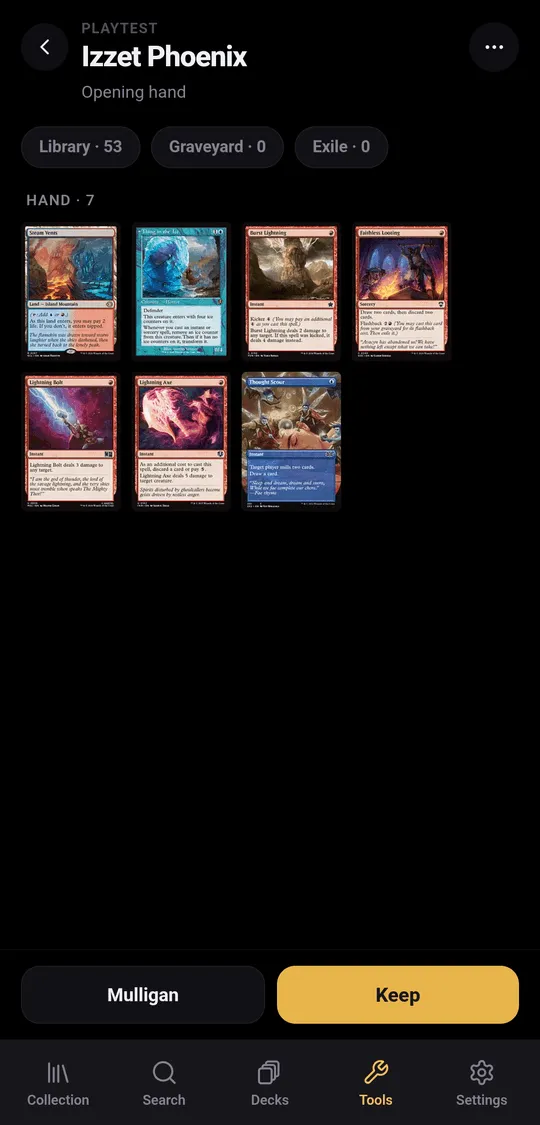
Game actions offers Untap all, Shuffle library, Restart on the play, Restart on the draw and End game.
A running playtest survives a reload of the page, but not a new tab.
Card scanner
The scanner adds many cards at once with the phone’s camera. It needs the Android app: in a browser, the Card scanner screen asks you to open it in the app.
- Open Tools › Card scanner. The settings shown at the top apply to every card you scan: condition, language (or Language detected), foil, and an optional list of sets to look in. Tap them to change them.
- Tap Scan cards and hold each card flat in the frame. The set code and collector number at the bottom left are read first, the name at the top otherwise. A sound confirms each card counted.
- Close the camera. The review lists every card read; those marked To check could not be matched exactly. Tap a card to change its printing, quantity, finish, condition or language, or to Remove from this scan.
- Choose where they go with Add to (the collection, a binder or a list), then tap Add N cards.
Text is read on the phone; no image leaves it. Only the text read is sent to your server to find the card. Cards scanned but not added yet survive a reload of the page, not a new tab.